How OS Deployment Works Across a Large Endpoint Fleet
How many working days does your endpoint support staff lose each quarter to imaging machines one at a time? For most IT departments the answer is uncomfortable, because the work stays invisible until a hardware refresh or an office opening turns it into a queue nobody can clear.
Manual imaging works well enough at twenty machines. At two hundred it produces inconsistent builds, undocumented exceptions, and a provisioning record that lives in somebody's spreadsheet. The problem grows again when those machines are in another building, another city, or another country.
Bringing provisioning into the same platform that already handles IT asset management changes what the work costs you. The image becomes a controlled build with a named owner, the rollout becomes a scheduled task with an expiry date, and the outcome becomes a record you can hand to an auditor.
In this blog, you will see how OS deployment works end to end across a large fleet: why organizations standardize it, how to build an image that survives contact with two hundred endpoints, how deployment tasks control what gets installed where, how remote sites are provisioned without a site visit, and how to prove a campaign landed.
What does OS Deployment Involve Across a Large Fleet?
OS deployment is the process of capturing a configured operating system build once and applying it to many endpoints in a controlled, repeatable way. Operating system deployment replaces the install-and-configure cycle that a technician would otherwise repeat on every machine. You stop provisioning machines one at a time and start running rollouts.
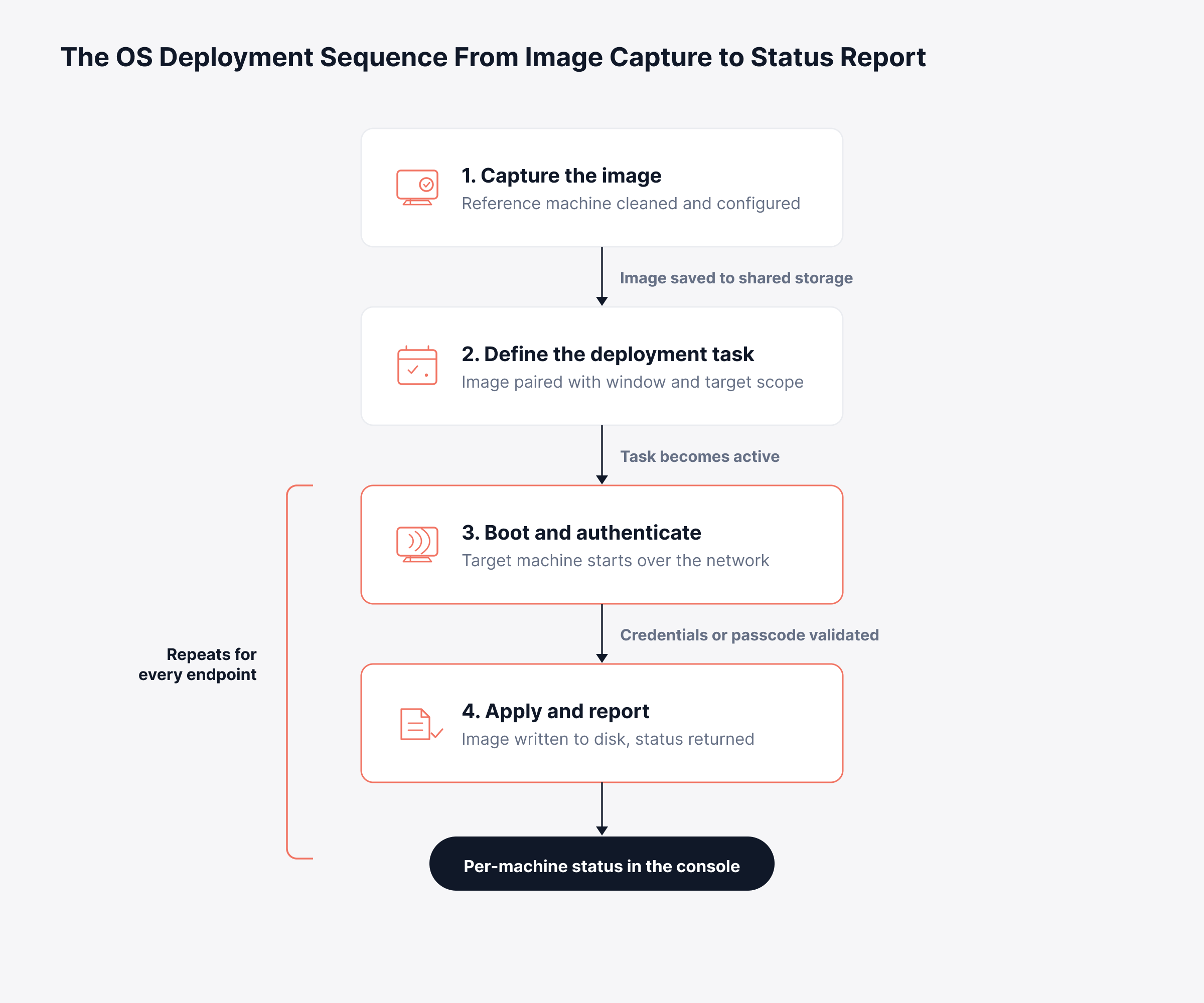
OS imaging is the capture half of the same process, which is why the two terms usually appear together. Across a fleet, the work breaks into four stages that always run in the same order:
Image capture: A reference machine is cleaned, configured, and captured as a single OS image
Task definition: The image is paired with a provisioning window, an authorization method, and a target scope
Network boot: Target machines start over the network, load a lightweight deployment environment, and authenticate
Outcome reporting: Each machine reports its own installation status back to the central console
That last stage is where OS deployment differs most from software deployment management. Application delivery pushes packages to machines that are already running and already known to the system. OS image deployment starts with hardware that has no operating system, no agent, and no identity, so the reporting path has to be built into the boot process itself.
Most fleets run Windows, so Microsoft OS deployment is what buyers are usually asking about. The mechanics below apply to Windows workstations and to server OS deployment on standardized hardware, since both rely on the same network boot and image application sequence.
Treat image capture and task setup as work you do once, and treat boot-and-report as work that repeats on every machine. The sequence below runs top to bottom and marks the two stages that run again for each endpoint.
Why do Organizations Standardize OS Deployment?
Organizations standardize OS deployment because inconsistent builds cost more to support than they cost to prevent. Every machine that leaves the bench with a slightly different configuration becomes a support ticket, a compliance exception, or a security gap that somebody has to investigate later.
The business case usually rests on five situations that recur in most organizations:
New hire onboarding: Machines are imaged in a batch before start dates, so nobody waits on IT to be productive
Hardware refresh: A replacement wave receives one current build instead of whatever the technician installed that week
Security recovery: Compromised endpoints return to a known-good state in hours, which shortens the window a breach stays open
Branch or office opening: A new site comes online without a provisioning trip on the project budget
Post-merger standardization: Acquired endpoints reach the approved build in one campaign, usually one of the first integration milestones leadership can see
Consider a finance department taking delivery of sixty laptops ahead of a quarter close. Imaging them one at a time takes days of technician time, and the last machine in the queue gets configured under pressure. Run as a single campaign, all sixty carry the identical build and enter the hardware asset lifecycle record on the day they are switched on.
The cost rarely appears as one line on a budget. It shows up as technician hours, delayed start dates, duplicate support tickets caused by build drift, and audit findings when nobody can evidence what was installed on which machine. Running provisioning next to the service desk removes most of that overhead, for the same reason endpoint management integration reduces handoffs across the rest of support.
Every one of those outcomes depends on the image being right, which is where the work starts.
How do You Build a Deployment-Ready Golden Image?
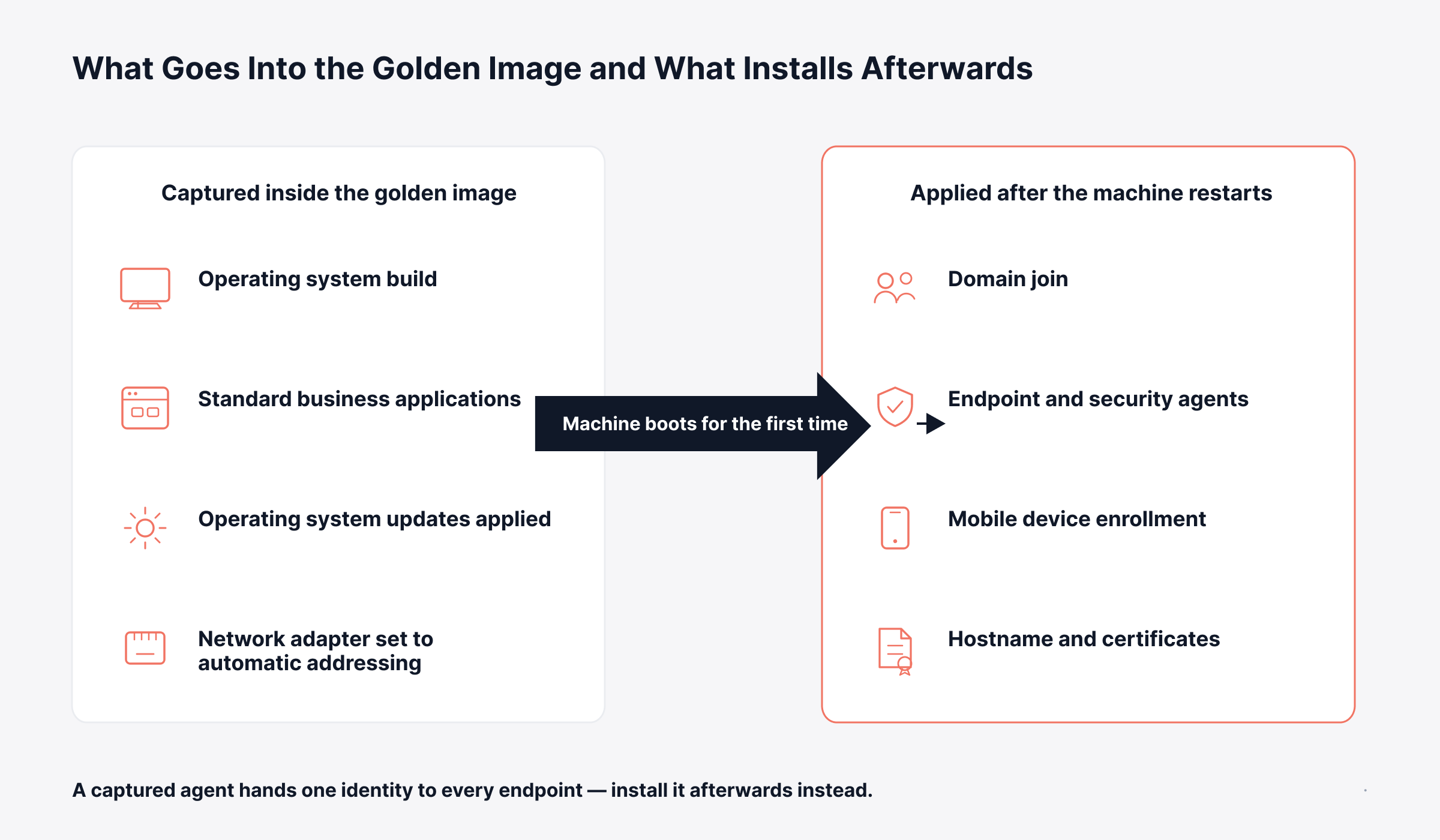
A deployment-ready golden image starts from a reference workstation that has been stripped of anything carrying a unique device identity. Every application present on that reference machine is copied to every target machine, so whatever you clean up before capture decides the quality of the entire rollout.
Three conditions have to hold before capture:
The machine belongs to a workgroup and is not joined to a domain
All operating system updates are applied with no reboot pending
A local administrator account with a known password exists
The harder judgment is what to leave out. Any software that registers a per-device fingerprint at install time will hand the same identity to every endpoint that receives the image.
Endpoint management agents: Register a device ID with the management server at install time
Antivirus and EDR tooling: Register a device fingerprint with the vendor's cloud service
VPN clients: Embed a machine certificate tied to one specific device
MDM enrollment: Bind device identity to a directory or mobile management server
Install each of those after the machine restarts, either manually or through a post-deployment task sequence. Domain join and per-machine settings such as hostname and certificates belong in the same group.
Hardware variation decides how many images you end up maintaining. A fleet running three or four standard models usually needs one image per model family, and each image then needs the same update cadence you already apply through Windows patch management, only against a stored build instead of a running machine.
Draw the boundary once and document it, because the most expensive imaging failures come from an agent that was captured when it should have been installed afterwards. The split below shows what belongs inside the image and what waits until the endpoint is running.
How do Deployment Tasks Control What Gets Installed Where?
A deployment task is what turns a stored image into a controlled rollout, because it binds one registered image to one provisioning window and one authorization method. Without that binding, any machine that boots over the network could pick up any image on the server.
The task carries four controls that decide what gets installed where:
Image selection: The specific registered build assigned to this campaign
Authorization method: Whether a technician signs in or a target machine authenticates with a passcode
Start date: The point at which target machines can begin authenticating
Expiry date: The point after which the task stops accepting new machines
The expiry setting matters more than it looks. A window matched to the provisioning schedule stops an active authorization from lingering after the rollout ends.
Automated OS deployment depends on getting this scope right. A well-scoped task means a laptop that boots over the network during the wrong week receives nothing, and a machine that boots during the campaign receives exactly the build the change record specified. Scope only helps once you know which machines fall inside it, which is where targeting starts.
How do You Select and Group Target Machines?
Target selection for OS deployment works differently from software delivery, because a blank machine has no agent installed and no inventory record, so there is no device list to pick from. Grouping happens through the deployment window and the network segment instead.
That makes your existing inventory data the main planning input. Knowing which hardware models are at each site, which builds they currently run, and which are due for replacement is what lets you size a campaign before it starts.
By site or subnet: Machines served by the same network segment receive the same image
By refresh batch: Replacement hardware arriving together is provisioned as one campaign
By department build: Business units with different application sets get their own registered image
By recovery need: Compromised or corrupted endpoints are re-imaged back to a known-good build
Once the machine is running and its agent reports in, IT asset discovery picks it up and the endpoint rejoins the normal inventory cycle. That handover is the point at which a newly imaged machine becomes a managed asset in your IT inventory management records.
How does Remote OS Deployment Work for Branch Sites?
Remote OS deployment works by moving the authorization step from the technician to the machine, so nobody has to travel to the site. Instead of an engineer signing in on each endpoint, the target machine authenticates with a short passcode issued for the campaign.
The two authorization methods suit different situations:
Consideration | Manual authorization | Passcode-based authorization |
How the machine authenticates | Platform credentials entered on the target machine | Six-digit passcode entered on the target machine |
Technician on site | Required at each machine | Not required |
Best suited to | Small batches and high-security environments | Large rollouts and remote provisioning |
Where the campaign is set up | At the target machine | From the central server |
Credential exposure | Platform credentials travel to the endpoint | Only a time-limited passcode leaves the console |
Passcode-based provisioning is what makes a branch rollout of a couple of hundred machines practical. Local staff unbox the hardware, connect it to the network, start it, and enter the passcode they were given. The image applies and the machine restarts on its own.
Treat that passcode with the same care as a password. Anyone who has it and can boot a machine over the network during the active window receives the deployment, which is why the expiry window should match the provisioning schedule and nothing longer.
How do You Verify an OS Deployment Succeeded?
Verifying an OS deployment means checking the result on each machine individually, because the campaign status only confirms that the task finished. A rollout marked complete can still contain endpoints that failed authentication, lost network access mid-write, or never booted over the network at all.
Per-machine verification rests on four data points:
MAC address: The hardware address identifying the specific endpoint that received the image
Installation status: The result recorded for that machine
Deployment start time: When the write began on that endpoint
Remark: The reason a machine failed, where one applies
Beyond the per-machine view, three report types cover what happens once a campaign closes:
Tabular reports produce a row for every machine, which is the format compliance audits and change records ask for
Summary reports aggregate by task and show success rates, which suits post-campaign review with department heads
Query reports filter by image, date range, or authorization method, which is what ad-hoc investigations need
Take that sixty-machine refresh again. If four endpoints failed authentication and nobody opened the per-machine view, those four surface weeks later as tickets from people who cannot sign in, while the change record still says the rollout completed.
Alongside these, an audit trail records who changed the task, when the window was modified, and what the system did during the deployment. Exporting that trail is faster than reconstructing a rollout from memory six months later, and it produces the same kind of evidence that asset lifecycle management already depends on.
Who Should be Allowed to Run OS Deployments?
Access to OS deployment should be narrower than access to patching or software delivery, because deployment permanently overwrites the disk on the target machine. There is no undo, and a mis-scoped campaign against running hardware becomes a data loss event.
Permission is best split into three levels:
View access, which shows images and deployment tasks without allowing changes
Image management, which allows creating, editing, and deleting registered images
Deployment management, which allows creating, editing, and cancelling deployment tasks
Separating image management from deployment management matters in larger IT functions. The engineer who maintains the standard build is often not the person coordinating a branch rollout, and keeping the two permissions distinct means a scheduling change cannot quietly alter what gets installed. Controls like these are easier to enforce when provisioning runs inside the same platform that governs the rest of the endpoint lifecycle.
How does Motadata ServiceOps Handle OS Deployment?
Motadata ServiceOps handles OS deployment as a module inside the same platform that already runs asset discovery, patching, and vulnerability remediation. Golden image creation, deployment tasks, target selection, and outcome tracking all happen from one admin panel, so the provisioning record and the asset record stay together.
The module covers the full sequence described above:
Image registration: A captured golden image is registered and its storage path validated before use
Deployment tasks: Each task pairs one image with a start date, an expiry date, and an authorization method
Remote provisioning: A generated six-digit passcode lets branch machines authenticate without a technician present
Outcome tracking: Installation status is recorded per machine, with an exportable audit trail behind it
Role-based permissions govern every OS deployment action, using the three-level split of view, image management, and deployment management described earlier. Full configuration steps, prerequisites, and troubleshooting guidance are documented in the OS Deployment guide.
Provisioning data also reaches the dashboards. Widgets track deployment volume, image usage, and activity by network segment, which is how you spot a retired image that machines are still receiving months later.
Make OS Deployment a Tracked Workflow With Motadata ServiceOps
Standalone OS deployment software handles the mechanical part and stops there. The image gets written, the machine restarts, and the record of what happened lives outside every system your organization uses to manage that endpoint afterwards. No OS deployment tool covers provisioning end to end either, since domain join, agent installation and enrollment still follow the image, and image-based provisioning suits standardized hardware more than heavily varied builds.
Motadata ServiceOps supports Windows targets on self-hosted installations, which fits the majority of fleet refresh work without claiming to cover every case. What OS deployment automation adds inside a service management platform is continuity. The build a machine received, the campaign it belonged to, who authorized it, and how it has been patched since all live in one place, which is the difference between provisioning a fleet and being able to account for one.
FAQs
What is OS deployment?
OS deployment is the process of capturing a configured operating system build from a reference machine and applying it to many endpoints in a standardized way. It covers image creation, deployment scheduling, network boot, and outcome verification. The goal is an identical, documented build on every provisioned machine.
How is OS deployment different from software deployment?
Software deployment pushes applications to machines that are already running, already discovered, and already have an agent installed. OS deployment starts with hardware that has no operating system and no identity, so the machine must boot over the network before anything can be applied. The two run at different points in the endpoint lifecycle.
Can OS deployment be done without a technician at each machine?
Yes. Passcode-based authorization lets the target machine authenticate using a short code issued for that campaign, so local staff can start the process without platform credentials. Motadata ServiceOps generates that passcode per deployment task, which is the standard approach for branch rollouts and large hardware refreshes.
What should never be installed on a golden machine before capture?
Anything that registers a unique per-device identity at install time, including endpoint management agents, antivirus and EDR tooling, VPN clients, and mobile device enrollment. Capturing these means every deployed endpoint shares one identity, which breaks the management tools that depend on distinguishing devices. Install them after the machine restarts.
How do you prove an OS deployment campaign succeeded?
Check the per-machine installation status, since individual endpoints can fail while the campaign itself reports as finished. In Motadata ServiceOps, tabular reports list every machine that attempted deployment and the audit trail records who changed the task and what the system did during the rollout. Both export cleanly for change records and compliance reviews.
Author
Poonam Lalani
Content Strategist
Poonam Lalani is a B2B content strategist and writer with a background in computer engineering and experience across enterprise technology domains, including AI, cloud, DevOps, data engineering, and IT operations. She specializes in creating research-driven content that simplifies complex ideas and supports product education, thought leadership, and business growth.