All Features
Network Observability
NetFlow and sFlow Monitoring
Flow monitoring collects NetFlow, sFlow or similar flow records exported by routers and switches to show who talks to whom, over which protocol, and how much bandwidth they use. Motadata ObserveOps runs NetFlow monitoring and sFlow monitoring as a built-in flow collector, so you can explore, alert on and report on flows in the same console as your device metrics.
What Is Flow Monitoring?
Flow monitoring reads summaries of network conversations instead of the packets themselves. Each flow record lists the source and destination IP, the ports, the protocol, and the bytes and packets exchanged.
NetFlow:
A flow export format created by Cisco. The device builds one record per conversation and sends it to a flow collector when the flow ends or times out.
sFlow:
A sampling standard used by many switch vendors. The switch copies one packet in every N and sends the sampled headers, along with interface counters, to the collector.
For more on the protocol itself, read what NetFlow is and how it works.
NetFlow vs sFlow: Which Should You Export?
The main difference is full records versus packet sampling. That choice changes how exact your numbers are and how much work the device does.
Aspect | NetFlow | sFlow |
How it collects | Tracks each conversation on the device, with optional sampling | Samples packets at a fixed rate |
What it sends | One record per flow, with totals | Sampled packet headers plus interface counters |
Accuracy | Exact counts when unsampled | A statistical estimate that gets closer at higher sampling rates |
Device load | Higher on busy links, since the device tracks every flow | Lower, since the device only copies samples |
Common on | Routers, WAN edges and firewalls | High-speed data center and campus switches |
Related formats | IPFIX, jFlow, NetStream and NBAR2 | sFlow v5 |
Export whatever your devices support. If a device offers both, use NetFlow or IPFIX where exact counts matter, such as WAN edges, and sFlow on fast switches where low overhead matters.
ObserveOps accepts both and labels each source by flow type, so a mixed network shows up in one view.
Which Flow Formats Does ObserveOps Support?
ObserveOps accepts the major flow formats on default UDP ports. You can change any port in Flow Settings.
Format | Versions | Default Port |
NetFlow | v5 and v9, including Flexible NetFlow | UDP 2055 |
IPFIX | v10 | UDP 2055 |
jFlow | v5, v8 and v9 | UDP 2055 |
NBAR2 | Cisco application recognition fields over NetFlow | UDP 2055 |
sFlow | v5 | UDP 6343 |
BGP NetFlow | NetFlow with BGP fields | UDP 2056 |
BGP sFlow | sFlow with BGP fields | UDP 6344 |
Huawei NetStream exports in NetFlow v9 format to the same NetFlow port. For hosts and links with no flow export, you can run a software probe such as nProbe or YAF.
ObserveOps can also turn parsed firewall logs into flow data with its Log to Flow feature.
Set Up NetFlow Monitoring in ObserveOps
Getting NetFlow, sFlow and other flows into ObserveOps takes four steps, and most of the work happens on your devices.
Set the collector ports: In Flow Settings, confirm the NetFlow and sFlow ports and turn on the BGP ports if you need them. Open those UDP ports on the ObserveOps server or on a remote collector.
Point your devices at ObserveOps: Configure flow export on each router, switch or firewall with ObserveOps as the destination. The flow configuration guide has step-by-step setups for Cisco, Juniper, Fortinet, HPE Aruba, Huawei, Dell, Check Point, Extreme, VMware and many more vendors.
Check the sampling rate: ObserveOps detects each source's sampling rate on its own. Where it cannot, set a custom rate per interface in Sample Rate Settings so traffic volumes scale correctly.
Verify the flows: Open Flow Analytics. Each device appears with its flow type and flow count, and Flow Explorer shows its conversations.
You can then name your traffic. Map IP ranges to departments or sites, ports to applications and protocols, and outside addresses to AS numbers, domains and locations.
A CSV upload maps IP addresses to hostnames, so reports show names instead of numbers. Flow data is aggregated every 5 minutes by default, and you can change that interval.
Explore and Alert on Flows
Once flows arrive, ObserveOps gives you four ways to use them.
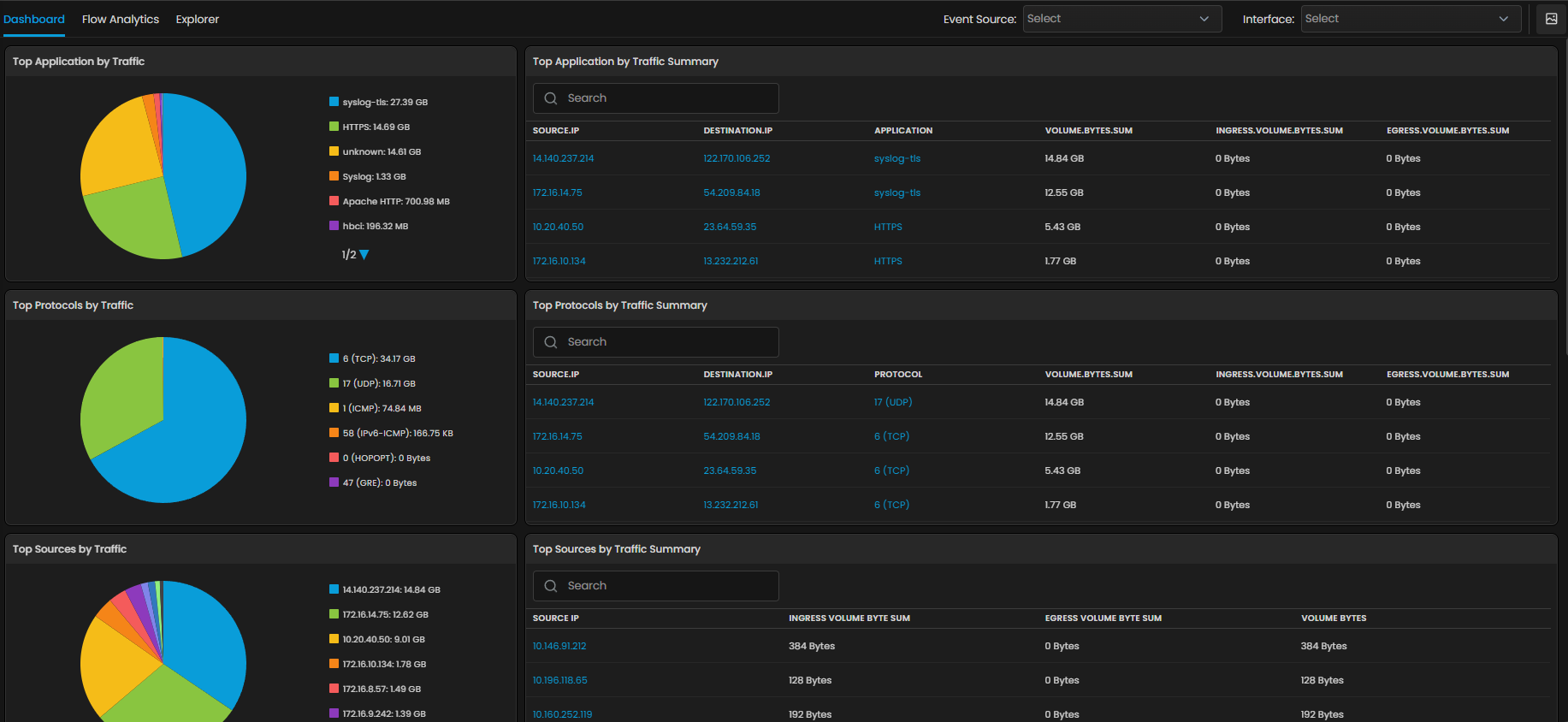
Preset dashboards: Built-in widgets show flow events per second, flow volume, top applications by traffic and more, with no setup.
Flow Explorer: Draw traffic as a Sankey diagram. Pick a counter, such as bytes or packets, group it by up to four fields, and save the view as a dashboard widget. For per-user and per-application views, see network traffic analysis.
Flow policies: Alert when any flow counter crosses a threshold. Default policies cover high bits per second for TCP and UDP, ICMP floods, traffic to malicious IPs from an integrated threat feed, and very low or no flow from a source. Built-in security policies also flag unexpected port use and unusual outbound spikes.
Anomaly policies: Check flow data every 15 minutes against its usual pattern and alert on breaks from the trend. Learn more about network anomaly detection.
The preset flow dashboard below ranks the top applications, protocols and sources by traffic, each with a searchable summary table.
Collect Every Flow Format with Motadata ObserveOps
Motadata ObserveOps collects NetFlow, sFlow, IPFIX, jFlow and NBAR2 from your routers, switches and firewalls on ports you control. It detects sampling rates, names your traffic and alerts on spikes, floods and silent sources.
Flows sit in the same console as device metrics, logs and traps, as part of network observability. So a traffic spike and the health of the devices it crosses appear side by side.
Run ObserveOps on premises or in your own cloud, on a single server or in distributed, high availability and disaster recovery setups. Remote collectors can take in flows at branch sites, and your flow data stays on infrastructure you control.
Ready to implement NetFlow and sFlow Monitoring?
Discover how Motadata ObserveOps can help you monitor your infrastructure in real-time and respond to issues instantly.